

Submissions
Every entry posted to a form is stored as a submission. Open a form and select the Submissions tab to work with your data.
Viewing submissions
The Submissions tab lists entries newest-first, showing each submission's values and the time it was received. Click a submission to open its detail view, where you can see every field value and download any uploaded files.
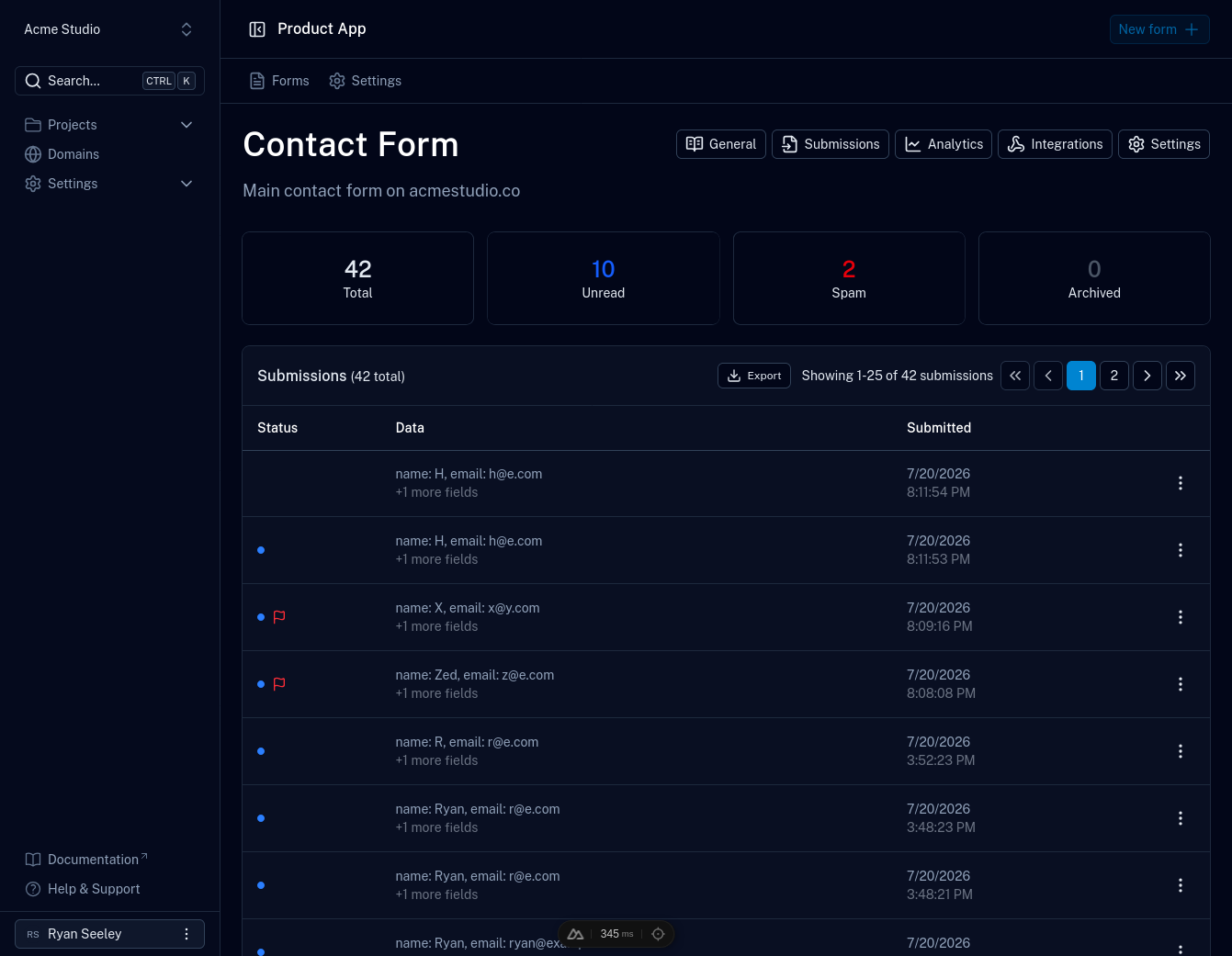
Counts across the top summarize the form's total, unread, spam, and archived submissions. In the list, an entry is marked with a dot while it is unread, a flag if it is spam, and an archive icon once archived. The menu at the end of each row marks a submission as read or unread, flags it as spam, archives it, or deletes it.
Filtering
Filter the list by status (all submissions, unread only, spam only, or archived only) and by a date range.
Exporting
Select Export above the list to download the form's submissions as a file. Choose CSV for reporting or spreadsheets, or JSON to move data into another tool.
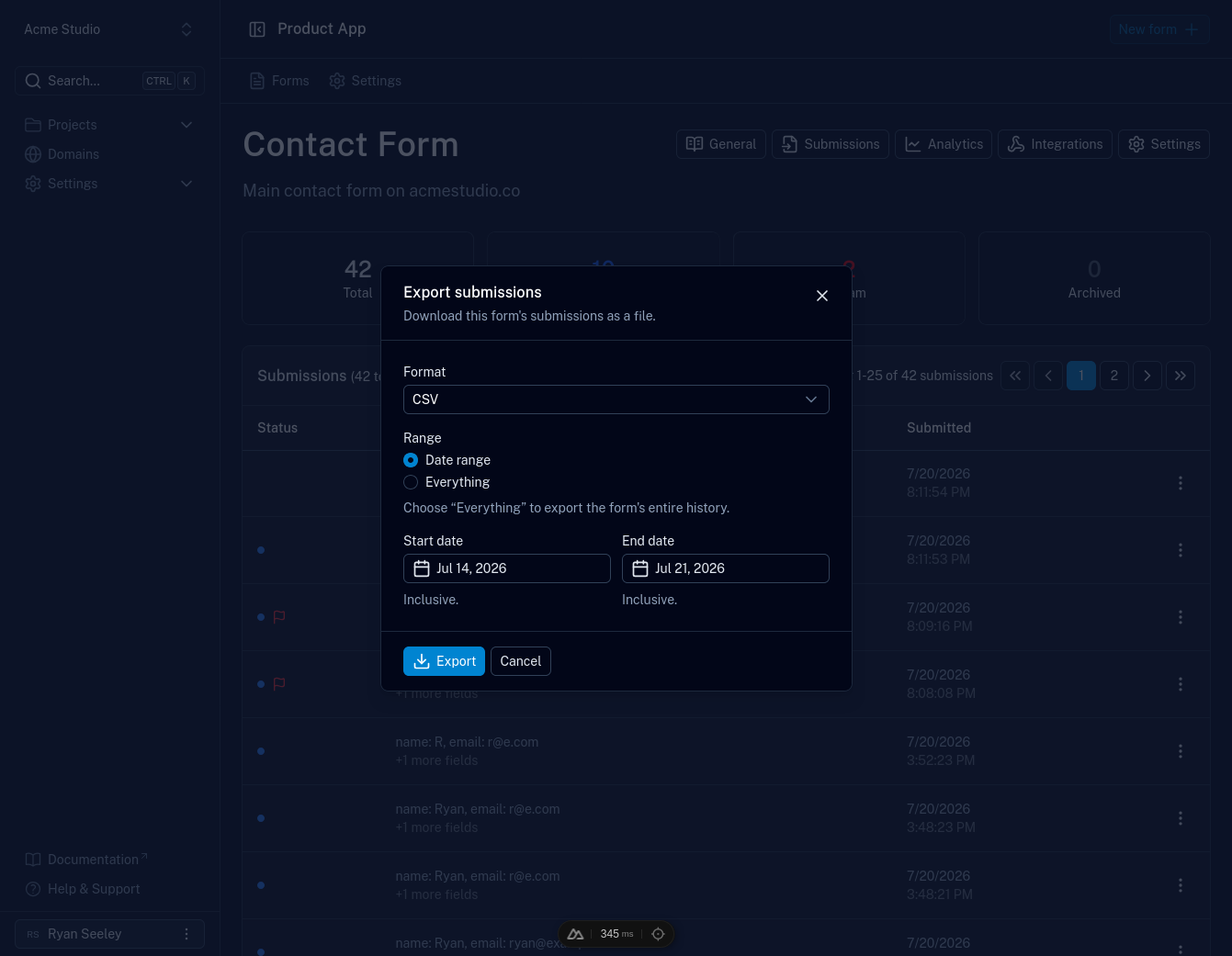
Export either a date range (start and end dates are inclusive) or everything, which covers the form's entire history.
Spam
Submissions can be flagged as spam, either automatically by your spam rules or by hand. Flagging keeps the main list clean without deleting anything, so you can still find a real submission that was caught by mistake.
Files
If a submission includes file uploads, the files are downloadable from the submission's detail view. File retention is subject to your plan's storage limits.
Retention
Submissions are kept until you delete them. Nothing is removed for being old, on any plan, so your history and your analytics go back as far as your account does. Deleting a submission is permanent.