

Slack
Post each form submission as a message in a Slack channel.
The Slack integration posts each new submission as a formatted message in a channel of your choice, using the Formiary Slack app. You connect your Slack workspace once per team; after that, any form can post to any channel.
Connect your Slack workspace
Connecting is a one-time step per team, and requires a team admin:
- Go to Settings → Integrations.
- Click Connect Slack workspace.
- You'll be sent to Slack to approve the Formiary app for your workspace, then returned to Formiary.
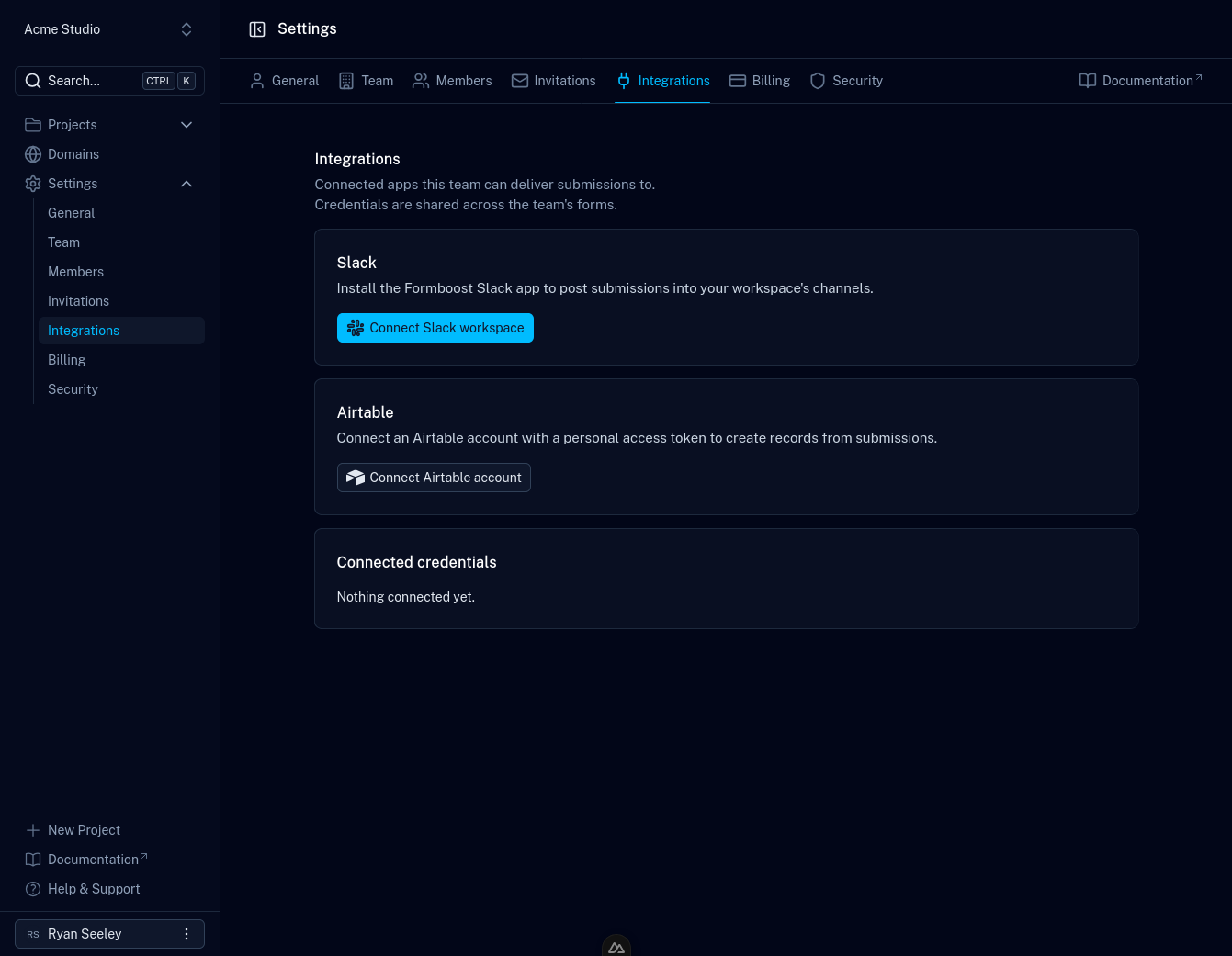
The connected workspace appears under Connected credentials, shared by all of the team's forms. Reconnecting the same workspace later (for example after reinstalling the app) updates the existing connection rather than adding a duplicate.
Add the integration to a form
- Open the form and go to its Integrations tab.
- Click Add integration and choose Slack.
- Pick the workspace (pre-selected if your team has exactly one) and the channel to post to.
- Use Send test event on the integration to post a sample message and confirm the setup.
Private channels: the channel picker lists public channels plus any private
channels the Formiary bot has been invited to. To post to a private channel,
first invite the bot in Slack (
/invite @Formiary in that channel), then pick
it here. Public channels work without an invite.What gets posted
Each submission becomes a message with a field: value line per form field, plus a footer with the event type, form id, and timestamp. Test events are clearly marked in the message title.
Disconnecting
- Uninstalling the Formiary app from Slack (or revoking its tokens) automatically pauses the workspace connection and every form integration attached to it, so deliveries stop rather than fail silently. Reinstalling the app reactivates the connection; reactivate the form integrations from their settings.
- Deleting the credential from Settings → Integrations (admin only) deactivates attached form integrations but keeps their channel settings, so you can reconnect a workspace later and reattach each integration from its settings page.